A2 Uploader Tutorial/Guide.
Finally you can mod your A2/DB3150/DB3210 Phones. Thanks to the_laser.
A2 Phones, This is an updated list of A2 phones.
A2 v1/DB3150
C702, C902, G502 , K630, K660, K850, T700, V640, W595, W760, W890, W902, W910, W980, Z750, Z770, Z780.
A2 v2/DB3210
C510 ,C901, C903, C905, G705 W705, W715.
With A2uploader you can now flash the phone with firmwares, customize your phone, de-brand your phone, add files to phone FS-FileSystem, upload flash menus and change menu icons and perform all customizations possible on the file system. With A2uploader you can’t patch your phone yet, you can use jjpatcher to patch your phone though.
Downloads
A2 uploader. Download Old Version ! New Version (for CID53) Download !
A2 Uploader Flash Video Tutorial. Download
The Old Version supports CID52 Reading from FS but no support for CID53, The New version Supports CID53 flashing/customization/filesystem, but no FS read, only FS write.
Note: Some Anti Virus report a2uploader as a virus, its not true. A2uploader is clean software. If your Anti Virus software is having issues with a2uploader, then its highly recommended to disable your anti virus software while using a2uploader. Your anti virus should not stall a2uploader during flashing, other wise it may damage your phone.
USB Flash Drivers.
Before you can use a2uploader, you will need to install USB Flash drivers. A2uploader comes with an automatic flash driver installer. Just unpack the downloaded archive and you will find a file with name ggsetup, Install the Gordon Gate drivers with ggsetup. And you will be ready for the next setp. You should install USB drivers only for the first time.
Part 1: Flashing The phone.
This part discusses how to flash the phone with firmwares.
The phone firmware consists of 2 parts, the Main firmware, and the FS firmware. Main firmware contains the phone operating system. Where as the phone file system contains lots of files needed for the phone to work properly. The phone FS also contains preloaded content like images and factory ringtones. With A2uploader you can flash your phone with the latest firmwares. You can flash both main and fs. Or only one of them, as you need. The main firmware has the extension .mbn and the FS firmware has the extenion .fbn !
You can get firmwares from seusers.com or topsony.com or 4shared or esnips. We now proceed to How To Flash The phone.
Flashing The Phone firmwares.
- Start A2uplader.exe
- Click ADD button.
- Select the firmwares you want to flash.
- Shutdown your phone.
- Re-insert Battery.
- Click Flash in A2uploader.
- Connect your phone holding C or 2+5.
- Wait for some time.
- Disconnect phone after flashing is done. It will say Elapsed:xxx secs.
- Re-insert battery and start your phone if you necessary.
You should connect your phone holding C, but if your Phone Start Button is C, The connect your phone holding 2+5.
Example: G502. Start button is same as C key.
Imporant Warnings:
- If you flash your phone FS, then all the data in your phone will be erased, All your SMS/Contacts/Pictures in phone memory. So before flashing your FS firmware you should backup every thing.
- Also If you Flash your FS, then you will need to upload CDA files to phone file system. You should upload Customize.xml and preloaded_config.xml to /tpa/preset/custom/. If you forget to upload CDA/Customizaiton/CustPack files after flashing the FS, then you will get a configuration error are phone start. If you forget, don’t worry, just upload them this time before starting the phone.
- While flashing the phone, don’t press the STOP button. Don’t close A2uploader, or don’t let your computer hang. Flashing the firmware half way may break your phone, and your phone might not start.
Screen shots of A2uploader. Click To Enlarge
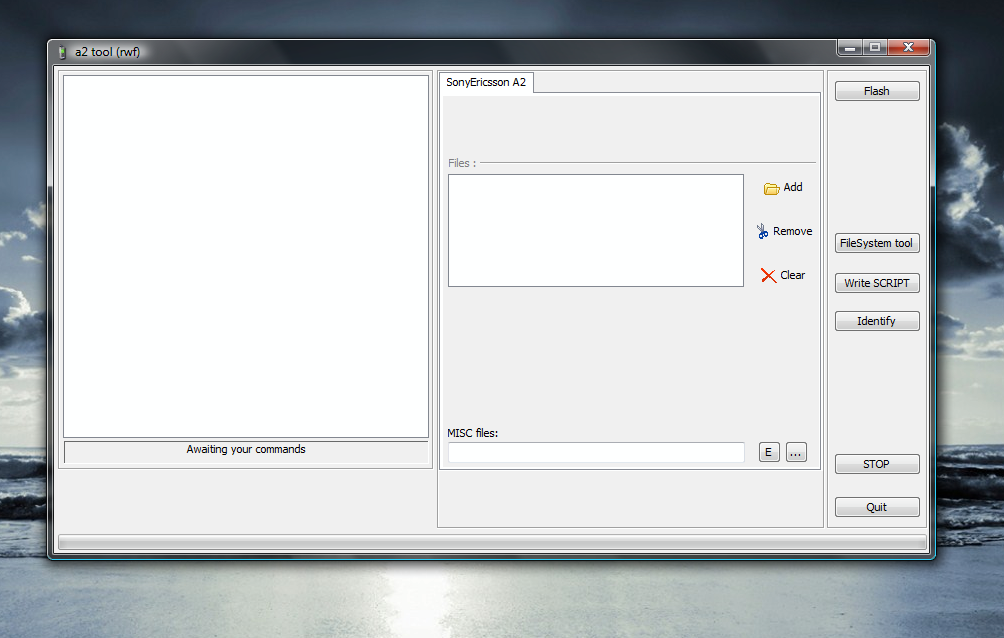
A2uploader Main Interface.
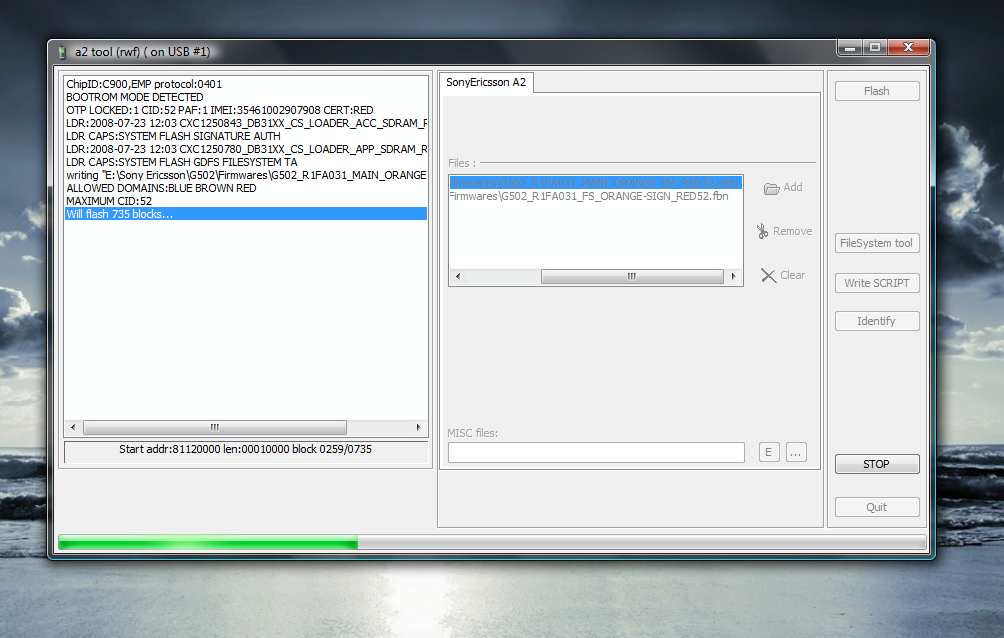
A2uploader in Action While Flashing.
Part 2: File System Tool.
Now this is where all the fun begins. With the File System Tool you can upload any type of file to any location in the phone file system. And also you can easily download files from the phone file system. Using the FS Tool is really easy. We right away get down to the tutorial on how to use it.
- Start A2uploader
- Click File System Tool.
- Re-insert battery.
- Connect phone holding C or 2+5.
- Wait for some Time for File System to intialize.
- After it loads, you can navigate through the file system with your mouse.
- Navigate to the location of your choice.
- To Upload Files, Just drag and drop files from your desktop or folder to A2uploader File System window.
- To download files, just right click on files in phone fs and click Read. It will be downlaoded to ph_out folder.
- Very imporant, after you finished uploading files to the phone FS you should click Shutdown FS Manager. Other wise all changes made will be lost.
- After closing, you should re-insert your battery and then start your phone.
File System Tool In Action.
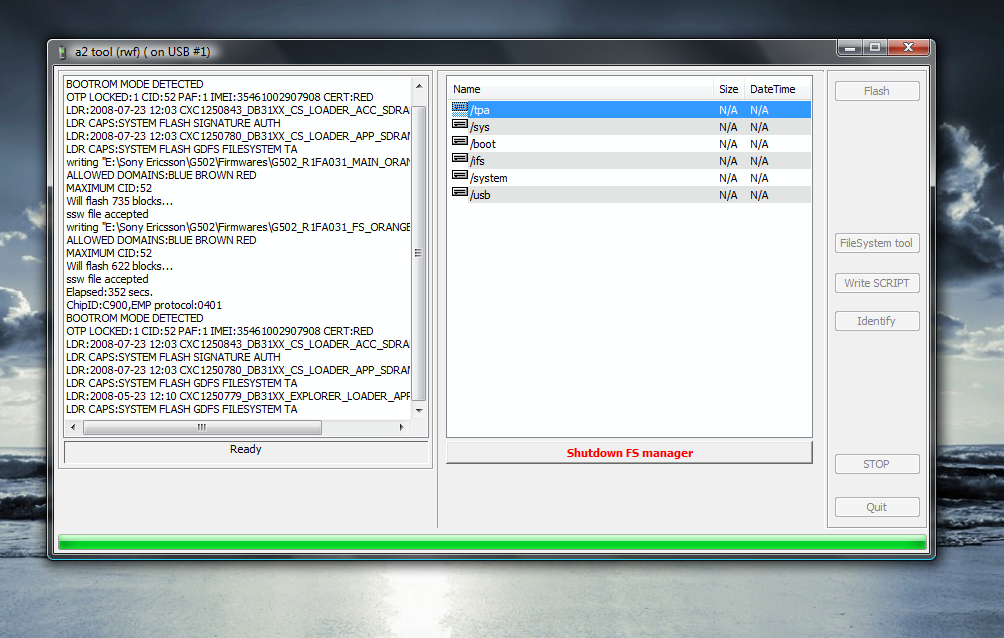
Reading A File from FS.
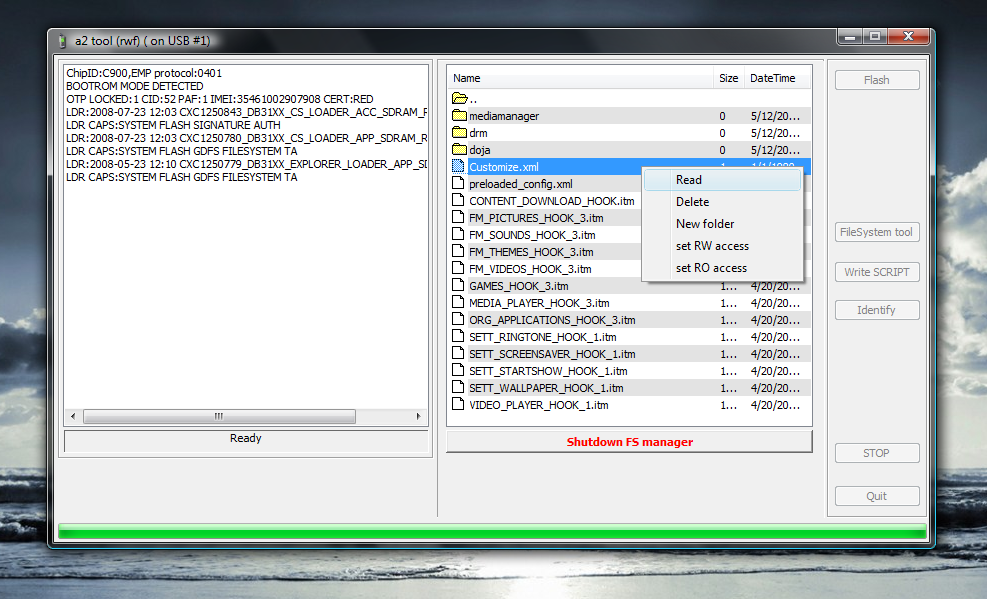
With The File System Tool you can customize your phone in many ways. Here are a few examples.
- New Custom Acoustics for better sound quality.
- New Custom Camera Drivers for better picture quality.
- Flash Menus, Very cool animated flash themes with animated menus.
- Menu Icons. With custom Menu ML you can completely control every menu in the sony ericsson phone.
Directories where the appropriate files are to be uploaded:-
- – PhoneMenu System: /tpa/preset/system/menu/
- – Sound Drivers: /ifs/settings/acoustic/
- – Camera Drivers: /ifs/settings/camera/
- – Start-Up/Shut-down Images/Sounds: /tpa/preset/system/settings/
- – Sound System: /tpa/preset/system/sound/
- – Sources: /tpa/preset/system/fonts/
- – Archives (images / sounds / etc): /tpa/user/
Still you can download our video tutorial to learn more.
For latest downloads i would suggest you to join our support and SE modding forums SE-LifeStyle !
Enjoy your customized A2 phone 😉 !
Regards !
Akshay
Bhuvan.

when i tried to open the actual application my antivirus said that it contained a trojan horse…why is this?
i’m having problem connecting to a2 uploader. the status bar keeps on running and it can’t detect my phone then a pop-up window appears that says it detected a removable disk. the driver is already installed. what could be the problem?
Works perfectly…I just debranded mine using this tool and SEUS 🙂
Cool!
ya…with few antivirus this is the case…but thers no risk!dont worry!
@jemscout
does your pc says that its semc flash drive connected???
if no then try connecting it again!!
hmm where should i look at to see if the semc flash drive is connected?
in system tray….you will find ‘safely remove hardware’ move your pointer there and check it!
thanx man … everything worked as mentioned above …
where can i get acoustics ??? the volume in my w910i is low … wanna increase it …
@riyaz
http://www.4shared.com/file/69370071/effc6ce/PHF_2_play.html
http://rapidshare.com/files/160043101/farfield_play.wbxml.html
http://www.4shared.com/file/68266617/c06b16b2/ACOUSTIC_PACK_DB3150_-_Mollinas_Mach5_Xplood_III.html
W980 [Loud] Acoutics~??- By Luhcas
http://rapidshare.com/files/160588196/w980_zapz.rar
erm bhuvan,
BHUVAN!!!
what happend to akshay????
and nice guide btw 😀
yes it is connected. what’s the next step then?
@jemscout
then do as it is told in the tutorial…like…first open s2 uploader…click on file system…and then plug in your phone pressing the key c
@Hamza477
heyy…thanx!
akshay is quite busy…his exams and all!
where can i get like menu icons and ml’s for a w760i
also fonts and acoustics for a w760i
Fonts:-
Alba
http://rapidshare.com/files/161132570/alba.rar
Allegro
http://rapidshare.com/files/161132571/Allegro.rar
Anarchistic
http://rapidshare.com/files/161132572/Anarchistic.rar
Aqua
http://rapidshare.com/files/161132573/aqua.rar
acoustics./…i’d posted above…check em out
and for…icons or any other thngs…go for are file base…or request at the forum!
still dont get…then go for topse.
I have a font on my w610i that i really like can i put it on my w760i ?
@smiley989
ohh…go on…try it out dude!just take the backup of old file…keep experimenting!
good luck!
well…acc to me…ya it will run!
@ bhuvan …
thanks man … keep u d hard work !!!
yo!
Guys, is there any way to copy files FROM the phone, so that one could read them and explore what’s the current settings are?
@Hedgehogs
huh???which files???firmware ones???you can xtract a firmware sperately!
exactly i am nt gettng u!
Hey thanks for the info. Got a problem though, hope you can help me.
I installed some flash lite themes for my G502 with the a2uploader. They work fine but I can’t open the submenus with any of them. When I select a submenu, it just hangs there. When I press the end key it comes back to the desktop. Can you help?
@Malinthe
ohk
g502…nice set!
well…its the problem with the xml file!
try some other file…i mean…other pack!
it will work
the xml file which u r using…is not for ur device!
Can I backup my files in the phones (acoustic, camdriver, dispdriver,flash menu,font,shut down images) ??
Umm…
Where can I found language files for SE K850??
Can K850 use the same font as W760 as mentioned above??
@pv
ya….instead of downloading them one by one…look at the tutorial given here…EXTRACTING FIRMWARE
or download an extracted firmware from topse
bhuvan, thanks for the advice! I found just the extracted firmware I needed at topse.ru.
Still, out of abstract interest, I’d still like to know whethe there’s a tool out there that allows not only to read the filesystem tree on the phone and upload files to the phone, but also read the files from it…
can some1 help me i got a problem
first i turn off my phone witch is a k550i if that helps, then i take out the battery, then i open a2uploader and click fileSystem tool then i put the battery back in and connect it wile holding “C” then this comes up
ChipID:1234,EMP protocol:1234
PHONE STATE: “RETAIL”
FLASH CID: 1234
Elapsed:5 secs.
the numbers “1234” are not the real numbers i just put it there just in case some1 can hack it XD
any way that’s all that happens what do i do now?
btw yes i installed it in first
@Hedgehogs
u will have to copy them to your pc and then u can read them!
well the extracted firmware got all those files!
@wes
a2 uploader is not meant for ur phone as the name says itself…its a2 uploader and urs is nt a2!
its db 2020…..so go for jd flasher or xs++!
@bhuvan: but HOW do I copy files from an A@ phone to my PC? What tool helps to do that?
The reason I can’t use an extracted firmware because I can’t find my carrier’s (AT&T) firmwares out there at topse.ru or anywhere else. Generic — yes, but no AT&T firmwares..
@Hedgehogs
thats good one!
well…y dont u debrand it????
i havent used a2 uploader…so cant say
well try dragging method!
Yes, I unbranded my phone, but I’d still like to be able to explore it as well as my wife’s branded version — for comparison. Some of the things don’t work on the debranded phone — like Youtube streaming. Also, AT&T’s celullar video website senses that my phone is not branded, and refuses to let me watch the stuff. I’d like to find out what identifies my phone to them.
I tried A2 uploader. It only allows to upload. You cannot drag files FROM the phone.
Hello- This is so frustrating. I have installed USB drive and run a2 uploader but it does not detect my W910 (unbranded), and when I press “file system tool” the a2u… screen disappears. I have been trying for 2 hours and am now screaming.
Any ideas ??
Cheers, LL-
@Hedgehogs
i can solve the youtube problem, google released a mobile version of youtube:
http://m.google.com/youtube
hope that helps… a bit…
@lamplighter
is there any safely reomove hardware??
as semc flash???
please send tutorial how to add file swf to a2uploader thx
@bhuvan- Cheers for your reply but got it sorted. I disabled an anti-virus program and it’s working great.
Thanks for your reply !!!!
Cheers !
@ bhuvan: interestingly the mobile Youtube app at m.youtube.com stopped working too after the debranding — now the website says my phone is not supported.
hai can any1 tell me whats this a2 uploder i have w910i phone i want to increase my sound can u guys pls help mee and pls explainme about this software,…..
Hi, i cant open the A2 file, any one know?
And why are the .exe virus??
i own a w910i … is it possible to update the main & FS firmware other than SEUS … like we r able to do with db2020 phone using xs++ … xs++ doesnt support db3150 … is there any other software ???
Hey every1.
@riyaz
no there isnt any free software to flash a2 phones yet. However, i dont see any harm in updating/debranding an a2 phone with seus because it was said that there is no cid 53 for db3150. I will soon be releasing a program to make debranding a2 phones much easier.
wish me luck!
I’ there. Wonderfull tutorial. The password for the fonts?
im a newbie to SE..so im annoyed by W910 font size can i change using this software?
Hi Bhuvan,
I got K660i on 3 Network. I want to debrand it.I downloaded from internet R1EA033,RIEA030,RIFA033 GENERIC FIRMWARES AND ALSO SO FS C-ASIA AND FS S ASIA_LEVAN. PLEASE ADVICE ME THE BEST GENERIC FORMWARE OF ALL THESE AND FS(I NEED EHGLISH LOL). CAN EXTRACT 3 FS WITH ANY SOFTWARE AND REBRAND IT IF IN TROUBLE(WARRANTY PURPOSE??).CHEERS MATE. GREAT HELP
where i have to put ‘flash saver’ in FS?
what i means stndby flash… tq
when i connect the phone it’s showing like this
PHONE STATE:”RETAIL”
FLASHCID:0053
elapsed:16 secs.
it’s not showing the files!!!!! please help
@irfan
your phone is CID 53
What is your model?
hey cant help me…were can i download a language….??
you can extract them from FS. using tools. you enquire about those things in se-nse or se-lifestyle please.
plzz answer me..
i found the standby flash files in topse.ru..
where i have to put in fs?
Hi. I read a few of your other posts and wanted to know if you would be interested in exchanging blogroll links?
Lets see, i will think about it. Your comment for some reason was flagged as SPAM comment here by wordpress plugin Akismet. Can you explain why ?
the phone doesn’t do anything..
what are you trying to do ?
install usb drivers properly, also don’t forget to press shut down or close file system when done with things.
Hi Akshay,
How to copy files from phone’s file system(K660i) using A2 uploader mate?. I downloaded update version( a2tool RW). Drag and drop method not working for copying files from the phone’s file system to my computer. Can you give a tutorial how to do it. Thanks in advance mate. cheers.
steve
@steve
no…this method should work
if not working
then….download the files from topse or somewhere else by searching on google
i copied the acoustic pack that was provided by u on above link in me w 760i phone but it didn`t increased volume even a bit
any help
are all of the old files have to be deleted
@amey
no just need to be replaced
u can try more…look in our file base
when i try to open up the fonts there tellin me somethin about password? what is the password?
@smiley989
dont know…cuz id not uploaded them!
bt…jz give a look at our file base…a lot of fonts are there…
i wud recommend u…sims one..my fav!
Hi, it is not working with w380i even XS++ isn’t working with w380i, what a shame my new phone :-(…
The drag&drop function works, just doubleclick on the files in the program, or rightclick/read. You can find the files in the yourdrive:\installpath\a2uploader\ph_out folder 😉
@Marty
shame…lol!
use jd flasher for ur phone
Drag and drop of the CDA file, isnt working for me either with A2uploader.
@Darryl
not possible!
which fone u gt???what it sayz?
Drag and drop of the CDA file doesn’t work for me too.
my phone is k850,nothing happens when I drag the CDA files and drop in a2upload
@ kylmer
it should gt copied…and fone wont give u da error!!
can samebody help me? i do all the things in the instructions to unbrand my phone but it still branded i don’t know if i have to do something else
@bboyzahid
Dude I am anxiously waiting for ur new program to make debranding a2 phones much easier.
Best of luck!
BR
hi bhuvan,
i try to connect my w910i (while holding C button) but there was no response until my w910i responded with mass storage mode.
is there something wrong with my w910 or did I a step to connect?
Please advice..
thx
@ erwin
no
thats the only way!
installed the drivers?
wy i can connect my phone?
i already installed all the drivers (including SE PC Suite & SE Media Manager).
Did i miss a step to connect my phone?
@erwin
nope
its all good
may b its the problem in connection
twist the cable a bit
which one should be done first? press C button & then connect the phone or connect the phone and then press C button?
@erwin
Do both at the same time. 😉
please ignore my last message…
IT WORKED!!! thanks a lot
erwin
first keep pressing the ‘c’ key and then plug in
my phone is w595, I conneted fine but the Drag and drop of the CDA file doesn’t work and copy also doesn’t work, someone please help
@mara
use manual cmd method
and also u got to have admin rights
Hello! Noob question: Is is possible to change the font size of sms messages (in inbox) to the same size as when you are writing them using a2uploader?? If so, how?
Hope you can help me out. Been asking around. Nobody’s replying. =(
Thanks so much!
@lilitu
well…u cant!!!
even i tried that a lot…we had a big disscussion at forum too…no clue yet!
when i try to connect my phone it says that the device i am trying to connect has malfunctioned
hey bhuvan
good tutorial here.nice
however, it seems like the a2uploader didnt identify my phone,
i’ve been holding the c button for a long time.
i’ve install the flash driver…
is something wrong somewhere?
@kippz
clean yor phone’s port…connect it back again….twist the cable a bit…it will get connected
@melonbars
which phone u have???
cennect it again…clean port of your phone
im using w890
the a2uploader did not identify my phone,
but my computer can so it goes to mass storage mode
@melonbars
install usb drivers
connect using c key pressed
hey bhuvan
very nice tutorial!
I installed a2uploader to delete some protected music files that came with my w980, and I really deleted them after copying a new file with the same name over them.
But when I turn on my phone, there’s still a “sony ericsson” folder under MUSIC. And it still shows the deleted files, though there’s a “failed” msg when I try to play them.
Any thoughts on how to go around this problem?
Thanks!
Jimmy
thats strange!
tried deleting them now with phone???
HI, i DOWNLOAD A2LOADER GORDON BUT DON’T KNOW HOW TO OR WHERE TO OPEN TO MAKE THE PROGRAM RUN… PLEASE HELP
AUSTIN
install gordon gate
now open a2uploader.exe
yo lo e realizado con exito, solo un problemilla, no puedo poner el idioma en español, si alguien me puede ayudar lo agradeceria, mi correo es [email protected]
muchas gracias.
Roberto Gujarro, oops am sorry, you should have selected the correct CDA number.
You can still though add languages, using a2uploader
check out spanish site
http://www.se-planet.com/
very nice tut. working like a charm, thank you very much !
Um i have questions regarding putting up a splash and shut down sound.. My phone is w910
I tried puting those two but there are some problem.
Splash image wont come out i already remove the file extension but it wont come out and just skip to my opening gif.
and when i shutdown the shutdown sounds wont work.
Senjeru, Let me ask my friends about it.
And you can’t unlock A2 phones as of now for free.
Then are you sure you removed the extension properly ? Also use a software to optimize the PNG
I think the start and shutdown images are PNG or JPG, find out. try out gif also, check that you uploaded in correct directory.
You should rename the files taht you upload to default values.
opps sory if im not clear.. I mean the sound when you shut down your phone.. it doesnt work when i put a file as a shutdownsoundsmc…
about the splash, what do you mean of optimize the png?
Hi I want to flash my phone (c510)
I have added the main and fs file and flashed and the phone starts up but then i get this message “contact service center or operator”
What have i done wrong?
I have solve the problem regarding splash..
You have to save it as splash.gif file then remove the extension file the .gif, then upload it to your phone hehe….
Now the other problem will be the shutdown sound…
hmmm any suggestions?
Mr.E
get a appropiate cda pack
serach it..acc to ur region
and upload to custpack folder through a2 uploader
senjeru
ohk…
nice
whats the problem?
akshay is now off again as i am back
so i relly dont know what u r facing
Hi bhuvan, I have a big problem, I master reset my phone and then it wont start up, i think my phone now is dead, pls help me how to fix it, and if possible with a2uploader, cause i dont have davinci tools.
Hi,
Could you please help me resetting the phone lock code for SE W910i?
I got to backup the FS using A2 uploader V3 and the back script. Is there any way to locate the lock code stored in the FS? Pl help
Thanks,
senjeru
dont worry
refflash using a2 uploader os u can even use seus
Can you unlock c902 on three network from the uk using this a2 uploader? i want to use my o2 sim on it! cheers!
jdizzle
u cam
follow patching and uploader guide
both
Hi, Can someone help me to reset the phone lock code to 0000? I forgot mine and could’t use other sim on it,
Thanks
Hi,
Could you please help me resetting the phone lock code to 0000 for W910i?
Is there any way to locate the lock code stored in the FS? Pl help
Will full patching the phone unlock the code? If so how to do a full patch?
Thanks for your support ..
Parthiban
post for once!
secondly…u changed the lock code???
better reflash to get back to original state!
use seus
save data before…use my phone explorer
Thanks Bhuvan. Sorry for multiple posts. I apologize
i there..how to flash a2 phones using a2 uploader? any tutorial..tanks..
p/s: im using w890i
aluya
its soon gonna be here
we are working on it
sorry!
Hi,
Even after updating the W910i phone through SEUS the phone lock is still set to Automatic. I am not sure to deactivate the phone lock. It is also not accepting 0000 or 12345. Could you please guide me to reset the phone lock code?
Hi Bhuvan,
I just want to know where could I get original k660i R1F035 acoustics? I been getting the knack of changing my acoustic drivers, thanks to Asad’s help, however due to excitement, I accidentally forgot to back up my original acoustics. Will they be back using SEUS or if ever, could I get the original acoustics anywhere?
Also any suggestion as to what would be the best acoustic driver out there that would greatly increase the loudspeaker of my k660i without/less distortion & give full but balanced bass sound on my headphones.
Thanks!
bleurdeur
updatign thru seus will solve this…but why r u taking so long method???
download original ones
serach on 4shared
What are the volume code for K850i?
LSG
get from filebase
i need help getting pass the phone lock on w595
psp786
jump to our forum
where can i getthe fs fbn? im using w890 r1fa035
how can we make GDFS backup of A2 phones.
if something goes wrong we can restore it?
i there, i wanna ask sumtin.. i have k850i R1CA037 CHINA_SO, if i flash the R1FA035 Main generic_so RED52 mbn and R1FA035 FS CENTRAL EUROPE red52 FS to my phone, what will happen? did i get a dead phone? cn u xplain it 4 detail..tanks..
i hve k850i, R1CA037 China_So,if i want to flash using R1FA035 main generic ak red52 and western europe 52red to my phone wat would happen? am i get a dead phone? one more my phone cant record a video..but can take a picture? help plss..
RoKI, you won’t, go ahead and falsh.
I just wanted to say thank you very, very much for this guide. It took me a while but I have now finally got rid of the nasty 02 shortcut that drove me crazy and improved the sound 10 fold.
Your a star.
Lee
i hve k850i, the prob is i can take a picture but can record a video? is there sumtin wrong with my hardware? 4 ur infomation i already flash my phone..is there any effect to my phone?
luku,
just de-brand your phone and all restrictions will be removed. even after de-branding the phone if video is not working then contact a local service center for checkup.
Hi,
thanx for the guide, very useful – just a quick question for u please?
on my c905, I have just de-branded but when i change a theme, the option in ‘settings > display > main menu layout > from theme’ is still greyed out? And for example when writing a text message, the background stays solid white with any theme (including flash) i choose?
Is this correct?
many thanx
Rich, are you sure you de-branded correctly ? If not then go for a reflash using A2upoader. falsh generic main and a generic FS.
hi,
I just tried debranding a w890i with the file “W890_R1EA020_MAIN_GENERIC_AK_RED52.mbn” and it went ok, but did nothing for the O2 branding, so I flashed with “W890_R1EA020_FS_WESTERN-EUROPE_RED52.fbn” and now it says “configuration error, please contact your network operator or service centre”
I saw the reply above about CDA packs, but am not sure what they are or what I need to do with them – I’m worried I’ve bricked my phone 🙁
Is there anything I can do?
you can mail me at [email protected] – thanks
cw1972
no need to worry mate
simply google it or search at 4shared or download direct from topsony
cda pack
search it acc to ur region
like for indians it is like
cda[phone model] [firmware version] [ur region]
cda w595 r3ea037 asia
bhuvan,
thanks for your helpful reply 🙂
I ended up finding the answer on the forums at http://www.seusers.com/ and it turned out it was a very simple step I had missed out – I now have a very nice unlocked and debranded w890i 🙂
Just 1 question…
can I use this A2 uploader. to flash my SE K800i..???
many thanks..
Do anyone know where i can find Main_China and Customized_Philippines mbn and fbn file?
And can i unlock my c510 to c510a so that it supports UMTS850?
Thanks
flat
its db2020 phone so use jdflasher or xs++
no a2 support
jerdict
look at topsony or go at our forum ask there
ya…u need firmware files!
i just finished flashing my G502 fie the first time on my own.. this article was descriptive enough that i successfully flashed it and got it the way i wanted it to be.. thanks..
Hi I have a cingular phone w810 I downloaded the cingular firmwares from se users. so will it debrand my phone or its like branding my phone with cingular again? also please me this step…
Also If you Flash your FS, then you will need to upload CDA files to phone file system. You should upload Customize.xml and preloaded_config.xml to /tpa/preset/custom/. If you forget to upload CDA/Customizaiton/CustPack files after flashing the FS, then you will get a configuration error are phone start. If you forget, don’t worry, just upload them this time before starting the phone.
I have a problem!
I downloaded the FS file for america at Top Sony but I cant find the Main files! Can I use generic? What can I do? My Phone gives me a configuration error and I cant use it! It is a w760i HELP PLEASE
xao
njoy!!!;)
ya
this will get ur phne back to branded state
crossflash to non branded firmware[generic]
also u can upload cda files whenever u want
Raul
configuration error is caused because of cda files
u havent uploaded them!
and ways…both should be branded if u want ur phone to be branded
i guess ull get branded one from topsony
check it out
Does A2uploader could run on linux system?
how do i figure out what files to flash my phone (w760) with?
hartanto
afaik no!
better ask at our forum!
Kman
which files u are talking about?
.mbn files are firmware files
get one for ur phone model
Hello, i have a brought a new G502 today but im not that happy with the sound output. So i want to increase the sound output by customising it.Now do i need to install a new filesystem to customize it or i can do it directly by using a2uploader and fashing the acoustics to /ifs/settings/acoustic/.
Dawsy
simple by uploading new acoustics
Je voudrais savoir si le w995 est compactible avec ce logiciel?
Does a2uploader run on W995 also ?
hi
i just debranded my phone and then had to flash it but after i did that i get a configuration error on my c902
After the flash i put the customize.xml and preloaded config in but the error still comes up
what shall i do???
eclipse29
eng plz
Daniel Akawatan
really dont know
either its db3350 or db3120
if db3120 then it will work
u give a try
there is no risk in checking
tanvirul
r u sure?
this error is caused only when if u havent uploaded cda files
get new ones acc to ur region for ur phone and upload in correct dir
Frm where would i get the original g502 FS… i mean the default ones is ther any link to dowload the same
Dawsy
http://www.topse.ru
or topsony
or search at 4shared
i wanna change the menu layout on my w995 but a2uploader is unable to read my menu.ml???
sid
huh???
a2 uploader is only for browsing through fs and uploading stuff
for opening menu file use notepad
PLEASE, I really need help, I don’t know where you get the files ‘Customize.xml’ and ‘preloaded_config.xml’. I have got as far as flashing my phone and now I have a configuration error.
Never mind, I got it. How silly. I’ve done it, I used C905_R1BA034_FS_WESTERN-EUROPE_RED52 and it’s the generic one, but parts of the menu are messed up. Any reason? /How do I solve this?
Bunnyonion
u need cda pack also which suits ur region
google it like this
cda c905 [firmware name] [region]
upload it to tpa/preset/custom
hey brp i upgraded c902 with C902_R3EA038_FS_CENTRAL-EUROPE_RED52.fbn and C902_R3EA038_MAIN_GENERIC_AS_RED52.mbn bt when i opened it there was no sound,, camera not working ,, and also music player not working.. plss help me guys
pankaj
its some hardware problem then
claim ur warranty
This is the absolute dogs do-daas
Thanks bhuvan and the_laser for an excellent piece of software
…. and it’s free!!!!!
Thanks guys
l33boy
lol
enjoy
What is the customize.xml file for the SE W995a?
Ardy
ask at forum
i have a c902 and cant access it because i forgot the code to enter. can anyone help
my phone(TM506) is not on the list at the top but it’s on this other list:
http://www.akshayy.com/sonyericsson/tutorials/de-brand-your-a2db3150-sony-ericsson-phone/
would the A2uploader work on my phone(TM506)?
sammy
reflash
markeyscarkeys
ya
its a2 phone
a2 uploader will be fine
i have to ask that if i had flashed the phone ..does it voids the warranty …or any other facility given by the company ??
pankaj
nope
if ur phone is branded then only such circumstances can be faced
even if ur phone is branded n there is some need to take it to service center then u can reflash to branded firmware
they wont catch u
i have a w995 from china and im trying to flash in the european firmware, but the software (A2) wont let me drag my files into it (no response), the main and fs installed fine, but without the custom files i cant run the phone, WHAT should i do????
Freeman
why is not letting u drag?
thats kinda not possible
select all the cda files
cut them and paste into simple single folder
drag from that place now
hi exactly how do i change my menu to flash menu?
morpheus1988
each theme has its own flash menu
upload that to fs
upload .thm to mem card
run it
hi, i cant play videos on bbc iplayer or youtube on me SE w995 bought it brand new today, i am connecting using wifi internet connection is fast, i can access pictures but cannot play videos, will this flashing thing fix the problem? thanks
adz
u mean u are streaming videos using ur wi fi modem to ur w995??
i really dont know about this!
update ur phone using seus
thats all i can say
or best way
jump onto our forum
ask JOCK there
he owns one same!
😉
Hi Akshay & Bhuvan,
Thanks for the wonderful guide and links. Your site is really resourceful and the tutorial videos are highly appreciated. I got a bite by blue ring of death in my K850i. Being lazy , i approached TotalGSM and got my back side burnt. They cant fix my problem and the KK Client they give keep giving funny errors. Frustrated by their support , I looked out for alternate. A2Uploader works like charm , even though I struggle a bit at start. Now my phone is up and running.
You guys really rock.
Chandra
enjoy!!!
Hey all nice TuT!
I’ve got a problem i have a Se W890i i flasht it wronge no i get the error ‘configuratie error.Please contact your network operator or service centre. i’ve used W890_R1FA035_FS_WESTERN-EUROPE_RED52.fbn
now that i see in the tuturial you also need a mbn file.
is there any way to resolve it? and which fbn and mbn file do i need to use to flash?
JuliusMalli
no u have flashed it way right
u have to upload the cda pack!
in
tpa>preset>custom
download cda pack for ur region from topsony
When i downloaded the A2 uploader its not opening ! plz help me ! i want to install Flash menus in my SE510 through A2 uploader
shah
put a2uploader in trusted list in ur antivirus!
or disable ur antivirus
I have this error when double a2uploader
“Windows cannot access the specified device,path,or file. You may not have the appropriate permissions to access the item.”
I am running on XP machine and admin mode
chilskater
because of ur antivirus!
add a2 uploader to trusted list
i just flashed my w910i. everything went fine. the i tried to get in the file system tool and it says cant find net header, ah help?
amy
this is kinda strange
i guess u flashed with some corrupt firmware
hey mate i have a k800i and i want to upload flash to it. is that possible?
Ajay
yea
u can upload it but k800 do not supports flash!
so no need
I want i complete guide how i should get my w760i to work.. =) I want the links and everything
hye..im new here..i tried fo flash (both FS and Main) my k850i but got the error “HDR block not accepted,error:101D” , “Elapsed:421 secs.”by the end of the process.
my phone still in the same state.. phone turns on, vibrates n keypad lights up, then nothing happened.the screen remains dead black as if theres no power to the screen. what should i do? thanks in advance..
hello a have a problem with camera.its not opening . modelis w380. is there anything i could do with a2 uploader?
hi will this app work on my W595 ??????????
can anybody help….. after customizing my k850 with a2uploader suddenly one day my k850 display went out when i press any key…then after 10/15 sec it again turn on but if i press any key again the display again tuns off…..i tries flashing with different firmwares/ filesystem but none of them helping, in one forum someone wrote that putting gdfs can correct the fault bt how to put gdfs using a2uploader/.
dynefinity
use different firmware files
download new ones
i guess old ones are corrupt!
grande
w380 is pnx5320!
use jdflasher
reflash fs
GEOFF
yup!
Parvez
i dont know gdfs stuff in a2 phones!
i guess its some hardware prob!
I am having w910 please tel me how to flash the menu icons and i can’t understand the procedure :)and also my firmware is rFsome 36 and what firmware i should install
Rac
firmware is what???
u miss wrote i guess
anyways
learn using a2 uploader.
get flash theme.
upload the .swf to tpa/preset/system/desktop/flash
and .thm to ur theme folder in mem card
the a2 uploader does not want to work on my computer!!!!!!!!!!!!!!!!!!!!!
Saint
whats happening?
add a2 uploader to trusted list of ur antivirus or disable ur antivirus
i hav a Se w705…’ve downloaded flash themes but the menu style are normally shown….i want d menu style f d theme….heard abt a2 uploader..i don knw how to use it….i want to change d theme menu style whic eva i download. pleas answer me at [email protected]
prajwal
learn using a2 uploader
later get flash theme
upload .swf file to tpa/preset/system/desktop/flash!
and .thm file to mem card as usual way
it will work
Is a2uploader support win7 ?
it looks like i can;t find my w995
I CAN FLASH FBN & MBN FILES WITH THIS SOFTWARE IN MY W980 PHONE BUT SOME FIRMWARES LIKE THIS EXTENSION (.SOFTWARE) CAN NOT TO FLASH PHONE!! PLEASE GUIDANCE ME.
W980_R3EF001_MAIN_GENERIC_MD_RED52.mbn (ITS CAN BE FLASH!)
R1EA033_APP_SW_1208_4726_GENERIC_KM_REDBROWNBLUE_CID53_52_49_DB3210.software (BUT ITS NOT)
chuanhua
it supports!
i have used it
ARMIN
.mbn is main and its all fine!
the other one is something which i dont know!
fs has to be in .fbn format!
this is something probably fake!
download from topsony.com
My c510 nt detected..
Nad, install usb flash drivers.
I have a w595.and upgraded its firmware to latest version(R3EG004) using SE update service.there r a lot of entries on topsony.com.which one to download??
shud i dwd the generic one??
please..support Aino and Yari !
THnx MAtE THz Tutoriaguide Really HELpEd ME!!!!!!!!!!!! 🙂
Can I use the a2 uploader on my sony ericsson w508a to increase the font size & how would I do this?
Hi,
Askhay n all of u fellow modders..im nt a newbie..had a K810i which i modded to the CoRe with mostly all of ur HELp n cant leave out Se-nse.com frm where i learnt alot as well..
Just wanted to say a Hi..n to knw since i was caught up nw back to do more RnD on this Fone..
Thanks
wILL bACKING UP mY pHONE…….sAVE aLL MY CONTACTS & mEMORY CARD aLSO….
tW fIRMWARE KYA HAI…..mERE PASS c510……mOB HAI……mUJHE fLASH MENU THEMES DAALNE HAI TO PLS…….pOORE STEPS bRIEF ME BATA DO.
sir bhuvan.. i fonts are not appearing on my w595.. i know it’s my fault.. i deleted or touched something on the a2 uploader.. how do i bring them back???
help.. i want to delete protected files.. which i did.. i played around the a2.. went to fonts.. delete all the chinese stuff.. then i turned on my phone.. it doesn’t have any text on it.. no letters.. just pictures.. please help me out.. how can i bring them back??? shall i add another font??? which i did.. it didn’t work.. what can i do?? please help!!!
hey..
can u tell me wat is the advantage of updatE and flash 😀
please reply asap 😀 😀 😀 !!
den, just refalsh your file system and cda files all go right.
just fixes a few bugs.
i want backup my fs firmware from my k850i, but i don’t know how to backup….
can u help me….?
hello, recently i’d changed my fonts with sony sketch directly with a2uploader, unfortunately my c905 brick and i’ve no idea what was happening, i guess there must be a problem with the fonts but i could’nt find any original fonts, can you help me? do i need to reflash because i’m quite new with a2 phone.Please!! help me
sory posting for the second time, previously i made some mistake that i changed with k850i driver, but then i put back the original one and change font with sony sketch, now my phone dead and i’ve no idea what to do.help me please
Hey every1
I have problem, my phone is C510 but branded with t-mobile software and its kinda annoying -.- how can i unbrand it? I saw the description how to use this software a2uploader and its pretty much confusing to me and im also scared that it may harm my phone if i unbrand it. I also want to delete some games that r from the phone and ringtones of t-mobile also, but i cant from the phone, it says: protected file, cannot be deleted -.- can u help me asap please ? Greets from macedonia! (:
I see in the guide video he have hes phone folder E:\Sony Ericsson\G502\and so on
-BUT! I can’t find my folder in my Sony Ericsson folder, thats i not understand 😀
Help -:
after flashing what are the benefits thatI am going to get?
will I lose any functions of facilities in my phone after flashing?
Please fix my doubts.
thanks in advance!
hey i try to use file system and i take out my battery and re insert it and i click filesystem tool and it says hold c and insert usb i do that and it wont do anything jus the bar keeps on going
i have windows vista and a SE W595 reply quickly please
SE Yari (u100i) can not be supported? sign….:-(
no yuri yet.
Awrite mate, i have the problem with dragging the files too, i have tried several files, totally uninstalled my antivirus to check if it was blocking the transfer, my phone is stuck no starting up. flashing seemed to work fine, but i need the customise.xml files back in there, cheers
just upload it mate!! 🙂 upload only customize.xml
flashing sovles all lame issues, stuck in between.
Hi akshayy. Can I use a C905 customize.xml for W995? I am unable to get one for W995. Plus, after having unlocked a SE mobile, does SEUS lock it back after an update? Thanks for the support. Cheers
when i connect my phone to a2 this word comes. ChipID:D900,EMP protocol:0401
PHONE STATE: “RETAIL”
FLASH CID: 0053
loader_on_loader:hdr err:005D
can’t load APPLICATION CPU preloader
phone pre-boot failed,possible RECOVERY needed.
Elapsed:18 secs.
my phone is w508
can u help me
hai bro..i had sucessfully connected wit te A2 uploader..but wen i try to open te ifs its cnt opened..its show ” ERROR while reading “acoustic/VHF_ring.wbxml”, [fsChDir] can’t get ACK” nten “[fsChDir] can’t send NET packet”.so wat i should do nw??? plz help me…
my sony ericsson g502 changed name to g502c!!
does this flashware work for the sony ericsson c905a( i seen it was good for the c905) but that is for the european edition yet i have the american one and i want wifi on mine which they disabled.
I accidentally stopped my USB
now my phone can’t start
any suggestion please?
I am using J105i Naite phone..
I am already having the latest firmware on my phone..
Do I still need to change the firmware for putting sound acoustics on my phone?
Whenever I am clicking on “File System” and connecting my phone I get a error which says..
ChipID:D900,EMP protocol:0401
PHONE STATE: “RETAIL”
FLASH CID: 0053
loader_on_loader:hdr err:005D
can’t load APPLICATION CPU preloader
phone pre-boot failed,possible RECOVERY needed.
Elapsed:8 secs.
Y is this happening? I am using new version CID53 a2uploader.
flashing G900 FILES REQUIRED FOR U2LOADER, THANKS.
iam not able to connect my w705 with a2uploader even after installing flash driver please help me somebody………….also iam not able to connect phone while updating my phone please help me plssssssssssssss
I want to increase the font size of my G502. How do I go about it? And where do I det the fonts? The ones given above were deleted by rapidshare.
Thanks in advance.
I want to increase the font size of my G502. How do I go about it? And where do I get the fonts? The ones given above were deleted by rapidshare.
Thanks in advance.
i ve problem pertaining to a2 uploader… help me..
hey thre..
the a2uploader cant detect my c510 although i already instal the usb driver..
how can u help me fix this?
thank you for give me a best information about a2 uploader( how to use it)
it very nice, most probly people don’t understand how to use this software first time…
Thanks a lot………….
how can i install c905 acoustic? is this could increases earpiece volume?
where can i get acoustics ??? the volume in my w995 is low … wanna increase it …
where do i find the cda packs?? i’ve been searching topsony and google but i can’t seem to find it! please help, i think i might’ve bricked my phone or soemthing :S
Hi, Can u explain where can i find these CDA/Customizaiton/CustPack files because my set is showing configuration error :{….help me….Where can i find these files where should i upload them…?
thanks dude, you are rock!! =)
please check the link and please help me
http://img17.imageshack.us/i/pleasexf.jpg/
please please help me..
where can i get CDA files?
hy how to back up my phone system?
Will it still flash if a2uploader is not able to detect d phone????
…cz last tim i had sum prblm wen d ph was nt booting…n d a2uploader cudn’t detect it…had to tk it 2 seus…i didn’t know how to flash den…
Hi Bhuvan,
I hav k530i, want to know a2uploader triks will work with my handset or not?
help i always get this msg when flashing, my k850 is BROD
writing “C:\Users\abc\Desktop\K850_R1FA035_MAIN_GENERIC_SO_RED52.mbn”
ALLOWED DOMAINS:BLUE BROWN RED
MAXIMUM CID:52
Will flash 701 blocks…
[a2_fout_ssw] can’t get NET header
Elapsed:335 secs.
?? ?? ???? ???????
please… help me… I made a mistake when I delete a customize for threaded sms in Sony Ericsson c510, is there any back-up for se c510??? please….. help me
thanks a lot
then,, my mobile, when I turn on, there is a wiriting “Configuration error. please contact your network operator or service centre”.. how can i fix it???
Sorry if my english not good…
Thanks again
Hi Bhuvan
thanks for the wonderful turorial.
I have a few more questions.
Iam having a w760a which was locked to AT&T. Now iam in India.
I have debranded it using the firmware file available from 4shared.com (W760 – MAIN_ FS Y CDA – R3DA028 – America – RED 52 and applied W760i_1208-4887_R2A_Customized_India package.). Everythings fine
When check the software version it says it was built on 080908 (Which is very old). So I tried to Update using SEUS. But it says your “Phone is already having the latest software”. Iam sure its not.
It looks to me like its not yet completely debranded.
How can I make my w760 to be updated to the latest firmware from SE using SEUS.
The second question is about the Main Menu layout , I couldn’t find the My Folder or My Stuff icon (Using which i can browse the contents on my phone and memory card) that was available before. I liked the icons and layout which was available before. How can I get it back.
Also there was a short cut for camera directly above the answer button. Now it says its Meda.
Did I use the correct firmware and FS . Do I need to do something more also (customize_upgrade.xml) etc. Please provide a link of the latest xml or firmware etc.
Please mail to [email protected]
Thanks
Narender
Hi All,
Got It.
I got to know why the customize_upgrade.xml was being deleted on first boot after copying.
The reason is that ” the cda version, cda revision , phone model (including the last charactor w760a, w760i) that is in the customize_upgrade.xml should match with the corresponding fields in the customize.xml already available in the phone.
1. Check the fields in the customize.xml by reading using the filesystem in a2uploader and generate the xml using A1 CDA file generator. If still there are any differences, you can edit the generated xml file and then save
2. Copy the generated/modified custimize_upgrade.xml file using a2uploader to the tpa/presents/custom directory on the phone
3. Then shut down the file system on a2uploader, power on the phone and boot till the main menu.
4. Power off, remove and re-insert the battery, start SEUS and follow the instructions.
Thanks every one
Regards
Narender
hy bhuvan how to increase my volume of my w 910i coz it play low n where to paste the downloaded files
how do i get flash menu on my phone w705
flash menu does not work on my w705 how can i get flash menu setting on my phone
Hii plz help me can i use this firmware
W550_R4CB020_MAIN_EU_EMEA.bin
W550_R4CB020_FS_EU2.bin
with this custom pack
W550_CDA102426_1_EMEA_1.zip
for flashing my sony W550i phone??????
plzz rlpy me mm…. watin!!!!!!!!!! akhyyy!!!!!
jhonadam
files are all correct but use xs++ or jdflasher for ur phone!
Hi Akshay and Bhuvan,
Thanks for putting all of this together.
I used your instructions to flash my c905. The reason I did it was because my phone kept hanging and the SE update didn’t help much. S0, yesterday I flashed it and still the problem was there…like accelorometer didn’t function..the speakers wouldn’t work and the usual hang problems. Then after flashing the phone I updated it again using SE update and to my surprise the phone worked perfectly ok.. for one day and again it’s back to hanging and previous problems. Do you have any clue as to why it is happening?
I would be very happy if you could tell me what else can be done to restore the phone to normal working condition!
Thanks,
Raj
@raj
thats really strange
reflash again, with new firmware files
n remove me card befor that n do not put it back
;)try it
i want to improve my camera and camera quality in my sony ericsson w595 phone through a2uploader can u help me to do that please
ON MY C510 SOUND is very quite how to boost it
sharan
uploading new driver will do that
google it or ask for it at our support forum
mikica
uploading new acoustics will cure it out, ask for it at out forum or download new acoustics from filebase upload it to fs
when i try to flash on my c510 i add fs,main firmware then i connect my phone, and when it starts flashig some kind of error comes out(HDR block not accepted, error:1022
i know what to do never mind
hey i have a biiiiiiiiiiiiiiiiiiig problem i just flashed my c510 and when i turnt it ot it says (configurational mistake contact you operator) if you know what i mean cus i’m from croatia
mikica
download a cda pack for ur phone
search at 4shared
or download from topsony
tnx an i have another problem i downloaded flashed theme and installed it like it supposed to but when i go in the main menu icons are different but when i click on them nothing happens
Thnxxxxxxxxxxxxxxx allotttttt Bhuvan!!!!!!!!!!!!!!!!!!!!!!!!!:-) 🙂 :-B
Hi Bhuvan,
Thanks for your response. It is still acting weird. I have no clue why it is happening like that. Hope that it’s not a hardware problem. I will have to go to SE service center to get this repaired i guess. Originally it had a Chinese main file (C905_R1FA035_MAIN_CHINA_SI_RED53). I have used that one again but it doesn’t help. Also flashed FS with hongkong version. The thing is that the phone is still under warranty but since it was not bought in europe these guys want money even to touch the phone and i’m in no mood to pay 25-30 euros just to install the software. I believe they do pretty much the same thing.
mikica
which phone u own?
its flash lite version issue, every phone supports a particular version of FL
ill tell you urs, tell me ur phone’s model
Jhon Adam
🙂
hi bhuvan,
i have g705, the a2uploader detect my phone but it won’t show the FS manager..
Can you help me fix this problem?
geripradana
why?
whats exactly the log hangs at? are u sure that the port is clean?
if nothing helps try far manager sefp2
check out filebase, it can also operate the work like a2 uploader
😉
Why I can’t use it on vista? it always stopped working when I click FileSystemTool. Plz help me..
Dida13
even i faced the same in win 7 home premium!
u hv got to reinstall windows
when i am clicking fs tool and connecting my phone then it gets startup and my phone gets charging…………………!!!!!!!!!!! WHHAT SHOULD I DO ………. HELP ME
Mandeep
install usb flash drivers
and connect holding the ‘c’ button
amaaaaaaaaaaaazing…………………
gud day, any link for best cam driver for my w910i? thnx bhuvan 🙂
and, best updated acoustic for w910
Search filebase on forum you will find cam drivers!
gnarkil
yeah like ppg said or discuss at forum
and for acoustics i recommend audoiphile hd!
Esse a2 Uploader serve para que mesmo ? ajuda a coloca ao acoustic no celular?
Jefferson prado
only english
sorry
Hey there, Thank you so much!!! It works
Chong Wee
😉
I debranded my w910i copying the xml file.
Thank U for the instructions.
But now im trying to copy themes and other stuffs, but the a2 tool doesnt seem to copying anything.
Also want 2 increase the volume of the phone and my handsfree speakerwasnt working when I first got the phone… Are there any solutions for these 2?
And u kno those extra applications and sounds and other stuffs that comes with the updates, I dont want them… is it ok if i delete them? and what software do i need to delete it, coz i tried it from a2 tool, it gives me an error msg..
any help please.. Thanks…
ohh.. .i could add in the files for the theme now..
just after restarting the pc…
I just added the files for the HTC theme, but the menu is the original… is there any threads that can help me with this…
n also is it possible 2 hav threaded views for the text messages?
Sorry for all these questions…
But also, i cannot drop the flash menus inside the flash folder using a2 uploader, it freezes n i loose the connection with my phone…
Proofless
try far manager sefp2, get it in filebase
Proofless
ur phone is w910, u need themes with flash lite version 2.0 take care of this
Proofless
like i said use far manager sefp2 and lets see what happens
ahh.. thank u 4 the reply…
unfortunately… Big disappointment…
T^T
It gives me an error
Error connecting device USB2
ChipID is not supported: 0X7A00000000000000000000
and only leaves me with an “OK” option…
Proofless
really strange!!! u had sefp2 right??
i would recommend u to reflash once and try again!
reflash whole
Sorry.. i think i broke the usb cable reli..
it works fine if im qzueezing one side of it the USB like hell…
lol
But i cnt navigate the mouse n hold the usb at the same time…
thanks U 4 all ur help…
I will do it as soon as i get a new usb.. n get bak 2 u if i have any more problems..
thank U!…
Check that its usb problem or fastport!
hello
I have a sony ericsson w980-. i flashed it and debranded it. but the phone lock code is still there… that means when i insert another sim, it asks for PHONE LOCK CODE
how do i get rid of that? I forgot the 5 digit code btw
Excellent tutorial ! Explains a lot about phone and software versions etc.
One suggestion though…. for noobs like me, please cut/paste the ‘Cautionary’ warning about the customize.xml to before the step-by-step tutorial.
Being a noob w995 flasher, I followed it step-by-step while re-flashing my phone from Isreali firmware to Western European, and flashed all without realising there was no such file on my phone in the first place, getting the ‘Configuration error’ as a result.
After much smoking and sweating, I figured out where to download such a file for the ‘c902′(I think), which freed up my phone completely.
Hope this helps clear up things for a few other ‘smoking sweaters’ out there.
Apart from my small hiccup, I found this tutorial excellent and extremely helpful.
Thanks Bhuvan, and happy flashing everyone.
……btw, I found the customize.xml file as part of a w995 custom or custpack elsewhere, unzipped it, and dragged and dropped in the relevant folder on my phone via A2 uploader, great piece of software!
can I flashing my Sony J105 Naite???
I’m using k850i. I am amature in flash menu using. I just installed ggsetup &
opened a2uploader, then connected my phone pressing FileSystem Tool(turning off, reseting bettary, holding C).
then, I copied .swf file to “\tpa\preset\system\desktop\flash” & theme file to “\tpa\user\theme”.
then I pressed shutdown on a2uploader & disconnected the phone. I turned on the phone & set the new theme.
everything is ok! .swf main menu is visible now. but the prob occurs when I pressed any button there its not working.
I can nevigate left,right,up,down… but pressing messaging, organizer, internet etc.. doesnt work!! pls help..
I’m very much interested to use these fash menus… pls anyone mail me a solution to “[email protected]”
plsssssssssssssssssssssssssss
when i connect the phone it’s showing like this
PHONE STATE:”RETAIL”
FLASHCID:0053
elapsed:16 secs.
it’s not showing the files!!!!! please help
when i connect the phone it’s showing like this
PHONE STATE:”RETAIL”
FLASHCID:0053
elapsed:16 secs.
it’s not showing the files!!!!! please help
My Phone it SE j105i (naite)
hi akshay,
i hav a t700 red black which stopped working from 2 months ago. i contacted sonyericsson service ,they replaced flash ic. and after 1 month again it started giving problem like phone contacts getting deleted automatically, camera not saving any photo or video. and lastly sim functions are not working means i cant make a call/receive. its sim is not registering .i went service , dey told it cant be repaired,it is not detecting in SEUS.
I tried ur software A2uploader . but it is saying ”” phone-reboot failed,possible recovery needed.cant load ID loader”””
phone ‘s current version is 1209-9071R3DA029080913
I purchased this set in january 2009.
plz help me [email protected]
Uh oh….please help! I get this error when I hold c and plug in w518a after hitting flash:
ChipID:D900,EMP protocol:0401
PHONE STATE: “RETAIL”
FLASH CID: 0053
loader_on_loader:hdr err:005D
can’t load APPLICATION CPU preloader
phone pre-boot failed,possible RECOVERY needed.
Elapsed:13 secs.
my phone is w518a
I saw the same problem in reply of March 19, 2010, so maybe there is a solution ?
hello……does se k660i supports flash menu & what r the softwares necessary and procedures for incorporating flash menu in my phone….plz help
How can i play you tube video on my w910 i as it is not supported is there any thing that i can do for playing that
And Ha is there any best autistic for my w910
@Ashish, use youtube video app!
And search on forum, lots of acoustics r available!
HI, i use a sony ericsson yari and i want to mod the camera. not that many mod camdrivers are available for the phone but i want to try watever is available nowadays. but, before doing that i want to make sure i have a backup of the original driver. searched all over the net but couldn’t find one on any net forium. only hope is to copy the phone file itself.FAR+sefp2 won’t do that for me. it wants me to convert my red erom into a brown one. as of now i can’t do that for free. (i can’t even find the filesystem for yari firmware R7BA084 on net). so i wanted to know if there is a way out. and also, can this A2uploader version2 with DB3350 support copy files from the Phone FS to my PC??? help me. and thanx in advance. pls mail me if possible: [email protected]
tried to upload layout_main.xml with fonts
sizes changed but got no effects in phone, acoustic too
what is wrong, please
Hi there am new to this whole debranding and flashing stuff. I just flashed my c510 with C510_R1DA035_RED52 and have done all the instruction but still giving me this message ‘configuration erro, please contact your netweork provider’. What went wrong and what should i do?
Hi there, i am new to this whole flashing and debranding. I just flashed my c510 and it giving me this message ‘configuration error, please contact your network pprovider’. I have followed all the instruction but still gets this message. What went wrong and what should i do? I flashed it with the firmware R1DA035_RED52.
Also the reason for my flashing is that after few months into using the phone, it got updated and soon after the keys started freesing, sometimes pressing keys i have not pressed. What seem to be the problem? and is flasing the best? Please help. Merry Christmas.
when i clicked on identify it said Operator Network is locked and operator is 620-06
hi. maybe someones can me helpin out. when i connect the phone it’s showing like this
PHONE STATE:”RETAIL”
FLASHCID:0053
elapsed:16 secs.
it’s not showing the files on the right side!!!!! please help
it’s a w995
Hi bros, i am ravz posting first time here…
I hv got G502.
I know its not a part of flashing,but anyways can anybody tell me that how can i put .elf files in my phone and see its effect. Also pls tell me that whats the best software i can use to customize, flash,patch, etc. my phone.
Guys pls reply i m waiting for ur suggestions…Regards.
i can’t connect it … i have the same problem as jemscout have … my usb flash drive is connected . bet still i can’t connect. how do i look for the semc flash drive ?
NICE THANKS FOR YOUR TUTORIAL
What do u want to do?
Acoustics cant be changed through layout_main!
it cannot read my c510… i try so many time… please help me….
bhuvan help me. i forgot to save Customize.xml and preloaded_config.xml files. Where can i find them for my w595?
Hi! i’m used to flash my T700 with Settool Box only. And the flash file that we neeed to flash with A2uploader is the same or different? please!
hi akshay
i am flashing my sony ericsson T700.i have installed A2uploder and also pc suite.when i am running ggsetup i got dos window with message successfully reset of the gordon’s gate port id’s.i dont know further what to do?
I have also installed A2uploder_v5 but in this case when i am press c button my mobile is not identified.but after some time mobile is directly connected as mass storage. And how to recognize that which firmware is needed for my phone bcz in seusers their is a lot of firmware for T700
pls help me.
hi bhuvan
i am flashing my sony ericsson T700.i have installed A2uploder and also pc suite.when i am running ggsetup i got dos window with message successfully reset of the gordon’s gate port id’s.i dont know further what to do?
I have also installed A2uploder_v5 but in this case when i am press c button my mobile is not identified.but after some time mobile is directly connected as mass storage. And how to recognize that which firmware is needed for my phone bcz in seusers their is a lot of firmware for T700
pls help me
plss help my phone error
can tell me
i want phone to normal
plsss
please can you contact me trough facebook if you have it pls i have to ask you something
http://www.facebook.com/mikyyy94
Shutdown your phone.
Re-insert Battery.
Click File system tool in A2uploader.
Connect your phone holding C or 2+5.
Wait for some time.
i have a problem when i want to start file system tool
this appears
PHONE STATE: “RETAIL”
FLASH CID: 0053
Elapsed:6 secs.
ChipID:E800,EMP protocol:0401
and then nothing else
I need a custom pack of w705 🙁
Help plea~
Guy, i want to ask something, if i do a wrong steps, and the phone cannot stated, can i fix the phone??
sorry if my english bad.
@bhuvan: the a2uploader isnt working for my w995 please help ;(.thanks
thanks it worked fine but the only problem with some thees is that when i click on any menu icon it doesn’t work what should i am now suppose to do please help me out
hi akshay and Bhuran. plz help me…iam having a w995..yesterday night i off the fon and charging..at this mrng when i on the fon and after enter phone code the fon stuck at searching netwok..When i push any buttons got nothing..I remove the battri and put back and turn on the fon still stuck..I do 10+ same way but still hang..Can u tell me what the problems?And is there anything i can do? I tried to update using update service but i got this messeg say software is latest..Then i try to use pc suite to repair ..When phone is connected and start downloading..Messeg come out ‘Download failed’…i do 2-3 times but still failed..plz help me..sent how and solution to my email [email protected]
Hi Bhuvan,
I have sony ericsson c905 model , I want to enable Wifi on my phone .
Can you let me know what I need to Do for Enabling Wifi on my C905 ?
Thanks
Kris
hello ! i’m completely new to this modding stuff. i’ve se CEDAR. how can i mod it with sound driver, camera driver & flash menu ? thanx for answering.
my brother using w705 and i want to flashing the phone. So i turn it off. But when i plug the usb cable and hold either C or 2+5, it suddenly turn on and show “Preparing for mass storage. WTF man…i try to find the setting in phone and in the SE service setting, but i found nothing..is there anyone who can troubleshoot this problem as well as i’m tension to think how to overcame this situation
PLEASE support YARI!!!!
support plzzzz! 🙁
what is the loudest acoustic for ear piece & ringtone volume in se cedar ? plz, give me a link ! thanx.
How can i backup firmware because i can’t bring the firmware for m east so i need to get it from anther phone
i used W980_R3EG004_FS_C-ASIA_RED52 firmware on ma phone buh i cant find C-asia custom pack…plzzz if any 1 hav dis plzz mail me at [email protected]
rt now mm downloading let’s c .its better than xs++
plz help. when i try to flash system hangs up. whats the problem????????
hello sir i am very much in tension i have a Sony Ericsson k850i and its not switching on when i am trying to switch it on then just a red light is flashing in the switch on button and when i am trying to flash it with a2 up loader then its not detecting the phone i tried every possible way to connect it but it became just a waste of time i wasted to much money on such a shit phone. sir please help me in any possible way.
Hi. And how how flashing Sony Ericsson Xperia phones?